


New article
Recently updated
Managing documents

Who is this article for?
Administrators responsible for managing documents.
Admin module access is required.
Noise Lab allows you to upload and display documents such as reports and other relevant files in standard formats like PDF on special document pages.
Accessing the uploads section
To access the uploads section:
- Go to Admin.
- Select Uploads.
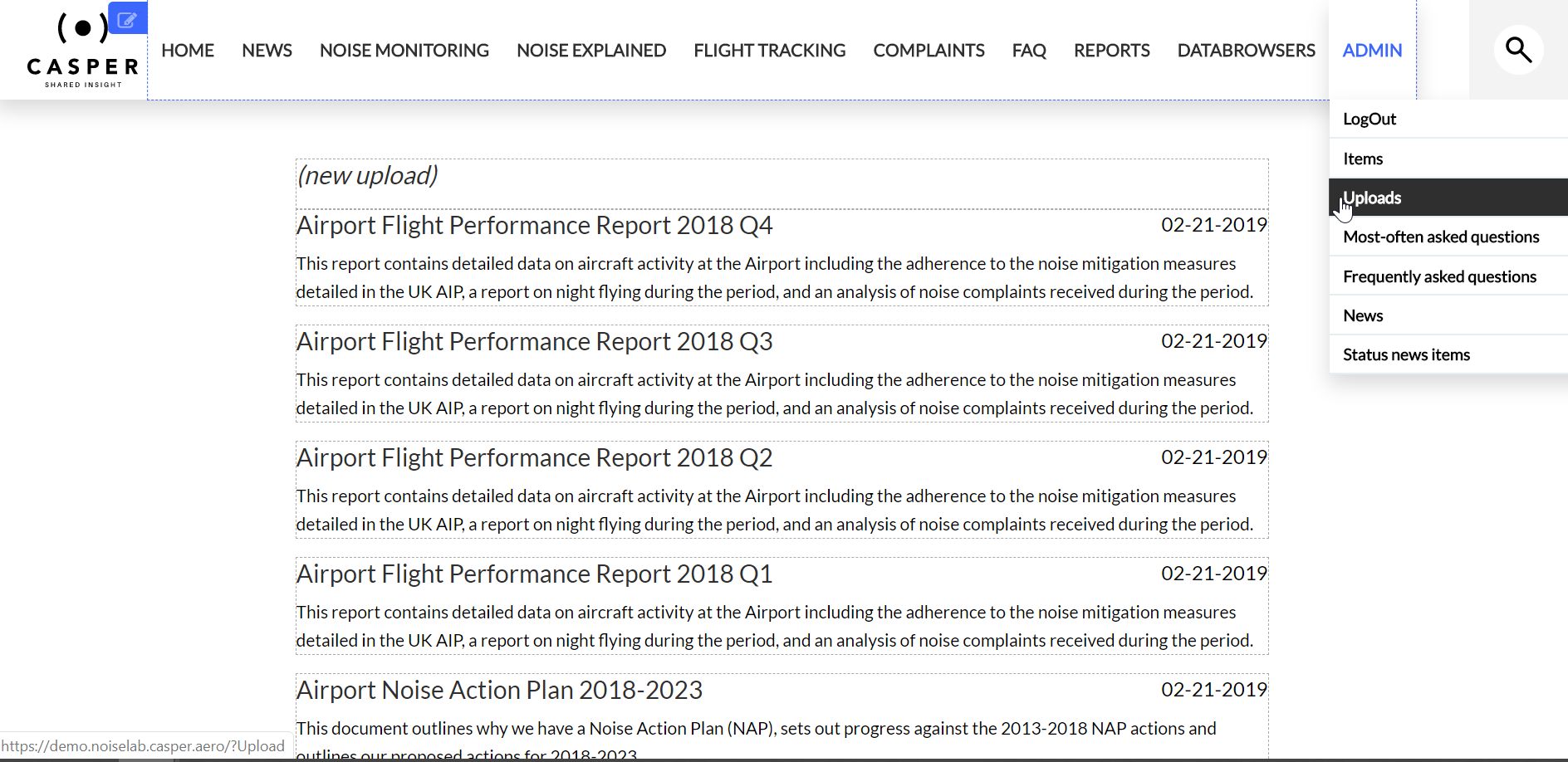
- Click New upload.
The upload document editor appears.
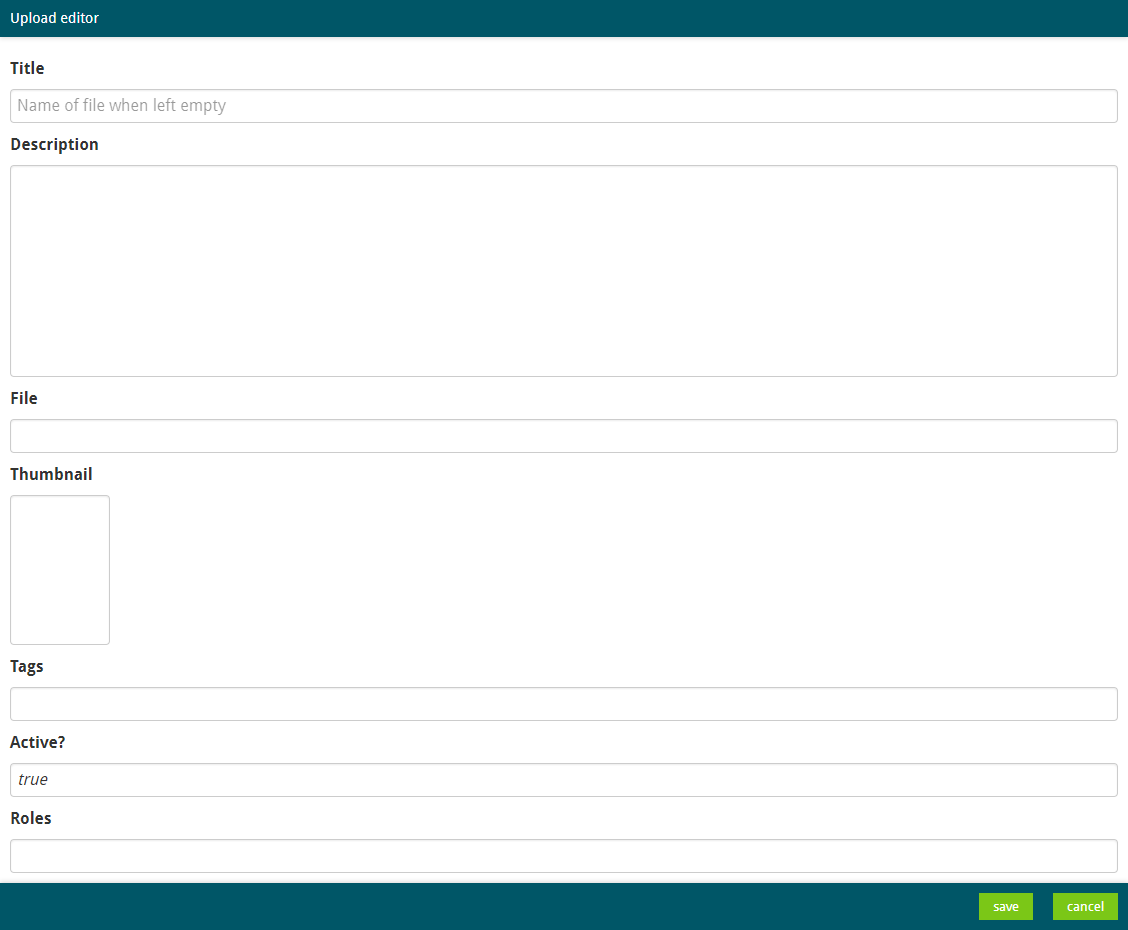
- Complete all fields:
- Title: The document title that displays publicly on the website. If left empty, the file name is used.
- Description: A short description that displays under the title.
- File: The document itself. Drag the file into the field or double-click to select it.
- Thumbnail: A small image of the document that displays on the website. Drag the image into the field or double-click to select it.
- Tags: Used to divide documents into different clusters shown on a page or tabs. If documents display on a specific page, set this tag on the pages listing in the main menu.
- Active?: Set to 'true' to make the document available, or 'false' to make it unavailable.
- Roles: Make the document available for specific roles. Leave empty to make it available to everyone.
- Click Save.