


New article
Recently updated
Adding images using the text editor

Who is this article for?
Users working with the text editor.
No special access or permissions are required.
Images can be added to your content using the image icon in the text editor toolbar.
Adding an image
To add an image:
- Click the Image icon in the text editor toolbar.
- Select your preferred method from the menu options.
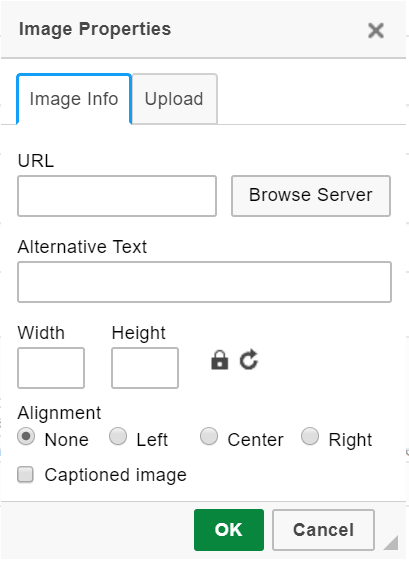
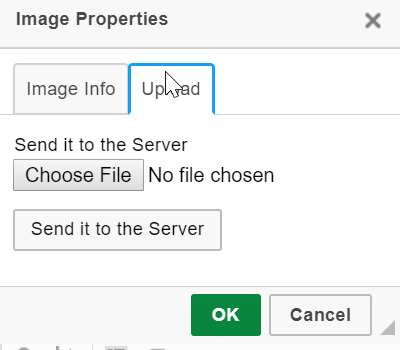
- Choose an image source:
- Existing images on the server: Click Browse Server to select an image already uploaded to the system.
- Upload new image: Go to the Upload tab, select your file, then click Send to the server to upload it. You can then adjust the general settings in the first tab.
- Use an image from another website: Enter the image URL in the URL field.
Note
Using external URLs means the image will no longer display if it becomes unavailable at that location. We recommend uploading images to your own server library instead.