


New article
Recently updated
Adding a content template

Who is this article for?
Users working with content templates.
CMS role is required.
The content template allows you to build most of the website by adding text, images and links across six customisable sections.
Content template structure
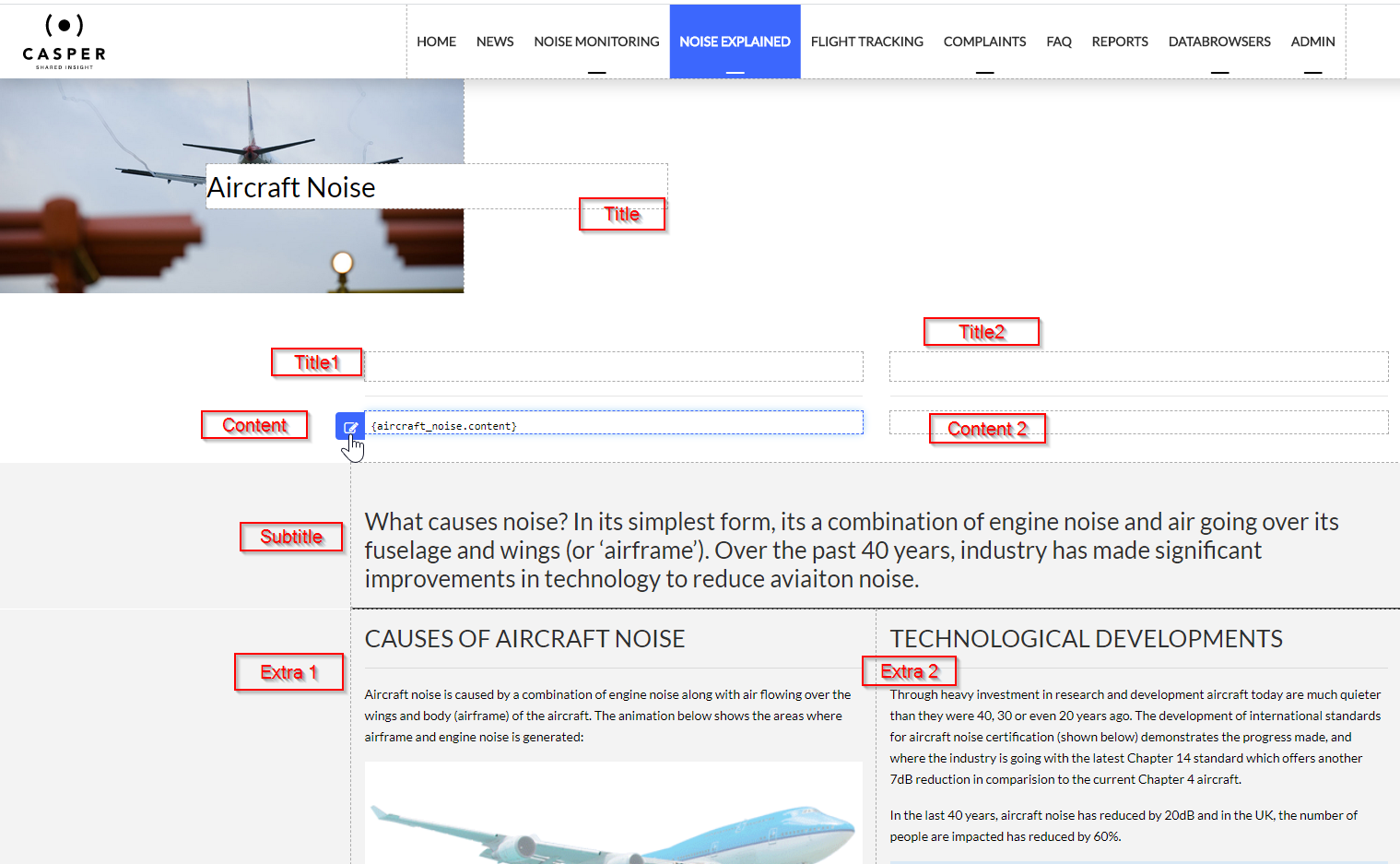
The content template consists of six parts (seven if two columns are selected):
- Banner – an image placed under the title covering the entire page width
- Title – the page title that may appear on the banner image
- Content – the main page content where you can add text, images and tables
- Subtitle – creates a bar at the bottom of the page with additional subtitle text
- Extra1 – creates a bar at the bottom of the page with extra content
- Extra2 – creates a bar at the bottom of the page with extra content
Banner image
To add a banner image:
- Click the edit icon in the Banner section.
- Drag an image onto the area where the text "Drop a file or double click to select one" appears.
Alternatively, double-click the text and browse to select an image from your computer.

Use an image size of 1920px × 600px or similar dimensions for the banner. If no image is added, the title moves up and takes up less height.
Title section
The Title section displays the page title, which may appear on the banner image. You can only add text in this box. The layout is determined by the general styling to maintain consistency across the website.
Content section
The Content section is where you add the main page content. You can include text, images and tables. In the menu edit screen, you can divide the content into two columns.
Note
A page with two columns cannot have a menu on the right side for a third level.
Subtitle and extra sections
The Subtitle, Extra1 and Extra2 sections allow you to add additional elements to the page. When filled in, each creates a bar at the bottom of the page with the content you specify.