


New article
Recently updated
Navigating the home page

Who is this article for?
Users working with the creator module.
No special access or permissions are required.
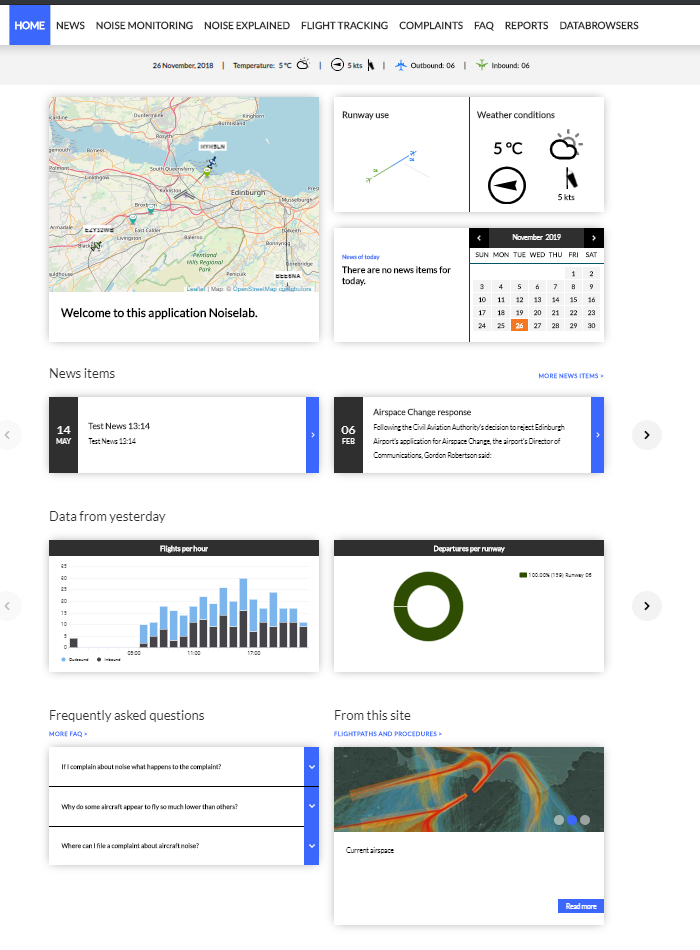
The home page combines dynamically generated components that visualise data from external sources (such as weather and flight information) with manually managed content including news items and FAQs.
Home page
The homepage displays various components that automatically visualise and summarise data. Some elements are controlled within the CMS system and cannot be changed by users. Where possible, Noise Lab configures these components in collaboration with the customer.
Header
The current situation information header bar appears at the top of the homepage and content pages. This header provides a concise overview including the date, current weather conditions (wind and temperature), and current runway usage.

To set up this header item per page:
- Navigate to the page editor when editing the main menu.
- Set the TODAY tag to true (=1) in the parameter field for the page.
Flight tracking component
The flight tracking element appears on the top left of the homepage. It is recognisable by the map and provides access to Flight Tracker without needing to use the menus.
Runway use component
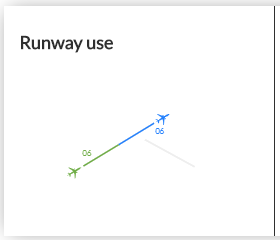
The runway use component appears on the top right next to the METEO Weather component. This item shows a stylised version of the airport's runways, including runway identifiers. Colours indicate whether the runway is used for arrivals, departures, or both. They match the colours in the current situation component.
METEO weather component
The METEO weather component appears on the top right next to the runway use component. This displays current weather conditions and provides information including temperature, wind speed, and wind direction.
'Directly go to' component
This element provides links to selected pages in Noise Lab. The selection is based on priorities set in the menu editor parameters field for pages that are menu items.
The component works as follows:
- In the menu editor you can set a priority for a menu item between 1 and 5
- For each number, the system checks whether there are pages with that priority
- If one page has priority 1, it will be placed on spot 1 of the 'directly go to component'
- If more than one page has priority 1, one will be randomly selected for spot 1
- If no page meets the condition, that spot will remain empty
- A page can only occur once in the 'directly go to component'
Calendar and status item component
The calendar element displays status messages from today, the past, or the future.
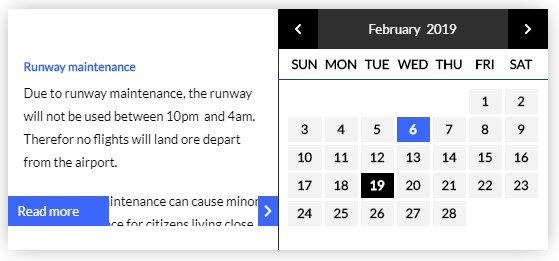
Dates with a status message are highlighted (white text on a black square in the example above).
To view a status message:
- Click on a highlighted date.
- The date will highlight in a different colour (blue in the example above).
- The corresponding status message appears on the left side of the calendar element, including a 'Read more' link when applicable.
- If there are several messages for that day, browse through them using the navigation controls.
Note
There are three types of information items which can be used within Casper Noise Lab for messaging. This is separated from the normal content and documents pages. Additional detail on this setup can be accessed at Information FAQ, News or Status Messages.
Latest news items component
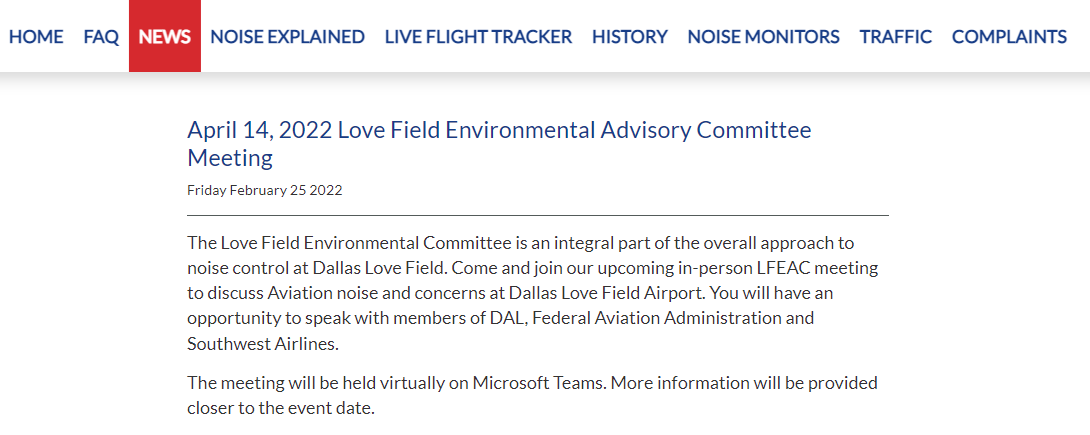
This element contains the last five news items created in the Admin module. The arrows on the sides allow browsing through these news items. Each news item displays only the first paragraph, so it is important to keep new content concise and to the point.
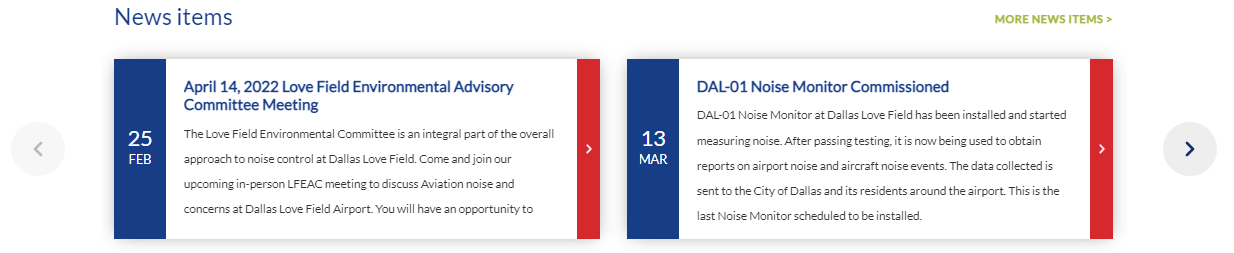
To view the full news message:
- Click on the side expand arrow.
- The full news message will be displayed on a new page.
FAQ component
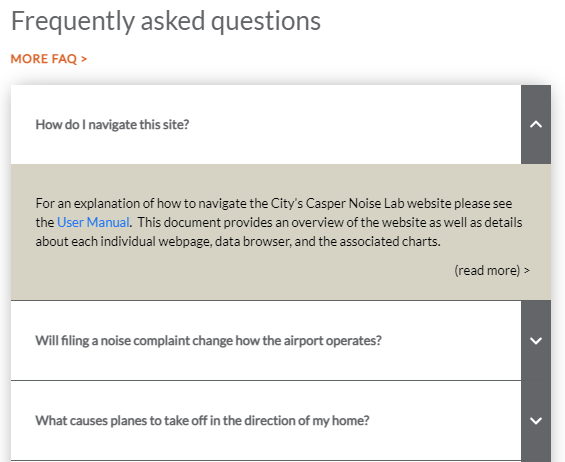
This element contains a selection of five frequently asked questions created in the Admin module. The selection is based on popularity, with the most frequently asked questions at the top. This count is reset periodically so that the questions rotate.
To find more FAQ items or view answers:
- Select More FAQ to see additional questions.
- Click the expand down arrow to see the answer to a specific question.
Slideshow component
The slideshow element is randomly filled with pages that have an image at the top of the page. The image of this page is displayed in the slideshow, along with the title of the page (above the image) and the first paragraph of the page.
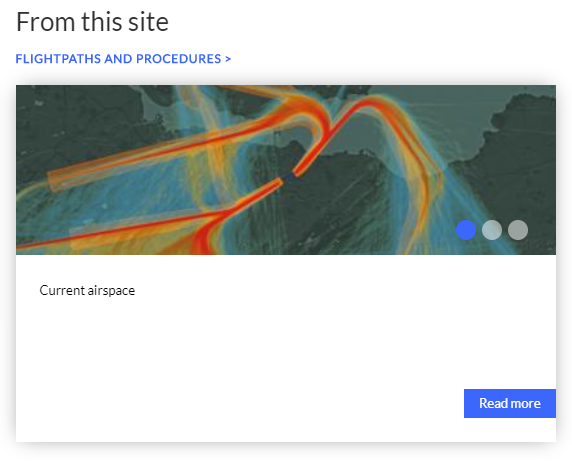
The default setting highlights all three different pages. When setting up Noise Lab, you can choose to have Casper show up to five pages. If there are fewer than three slideshow pages available, Noise Lab will show the same page multiple times.
Recent data components
These recent data components are also known as data from yesterday, data from last week, or data from last month based on the planned data period. These graphs are set up by Casper for the Noise Lab website user and are based on actual data collected in Casper Noise. The typical or 'standard' data components shown to the public are:
- Flights per hour
- Departures per runway and arrivals per runway
- Flights per period
- Flights per region
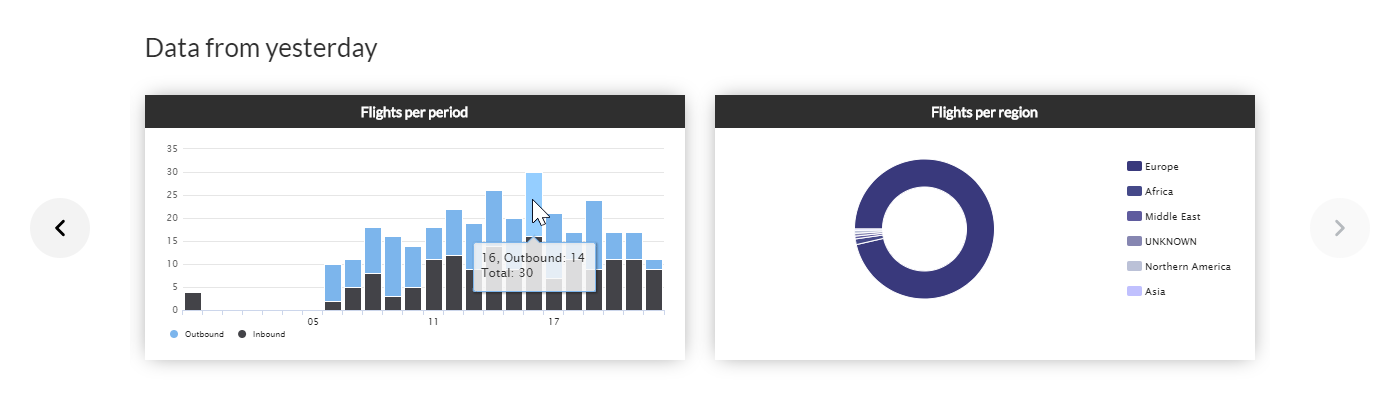
Using the side scroll arrows, you can browse through the available data component graphs. All the graphs are interactive – hovering the mouse cursor over the graphs or the legend will highlight that section and populate more data.
Footer
Each Noise Lab page displays the site's footer. This page can be edited to include information as needed.
