


New article
Recently updated
Adding a news item

Who is this article for?
Users working with news items.
Creator module access is required.
You can add and edit news or status messages using the editor to keep your users informed.
Adding a news item
To add a news item:
- Start editing your news item in the editor.
- Make your changes.
You can find more details about each field in the next section. - Click Save.
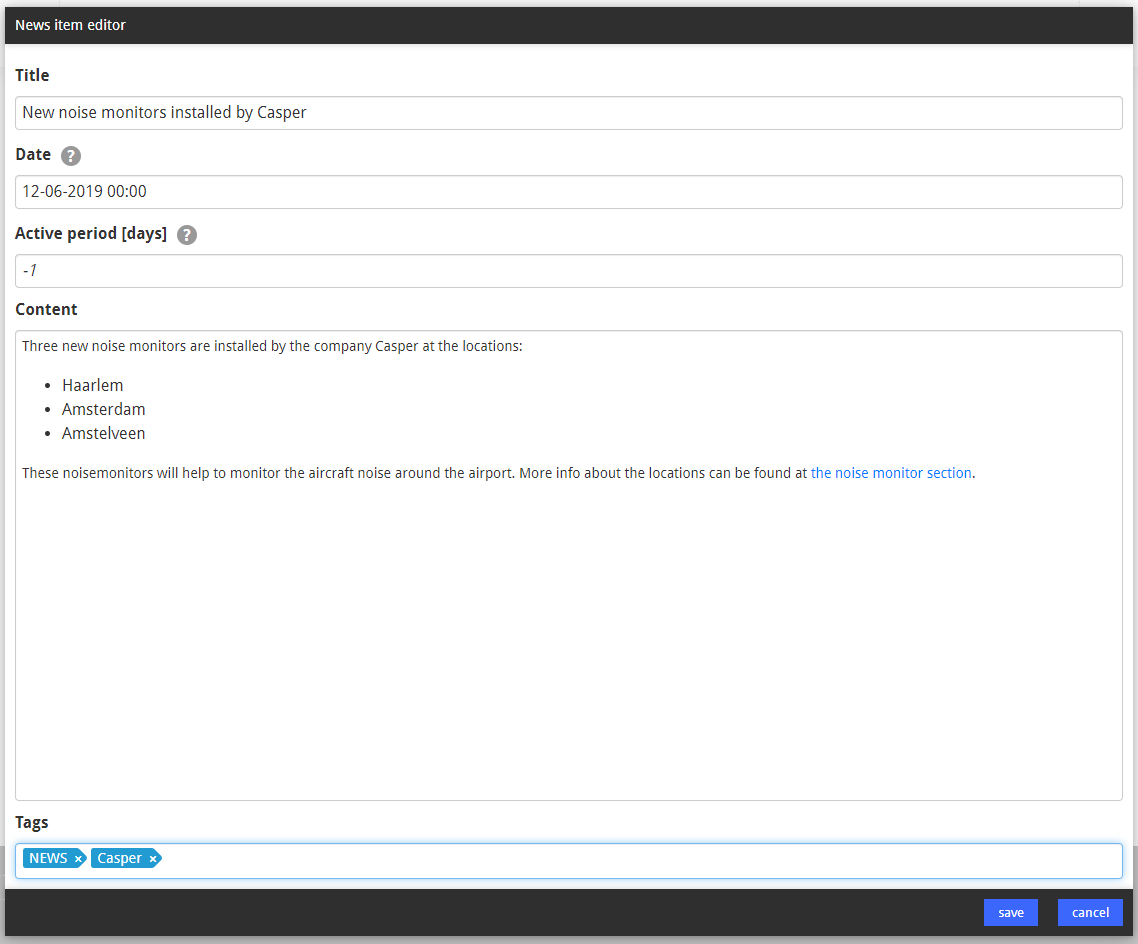
News item fields
When creating or editing a news item, configure the following fields:
- Title - The title displays above the message
- Date - The start date and time determines when the item appears and how it's sorted. Setting a future date hides the item until that date. Select the date using the calendar and optionally type a time afterwards
- Active Period [days] - The number of days the message remains active from the date entered. Use -1 to keep the message always active (even with a future date), or 0 to make it inactive. You can also enter a specific date and time in this field
- Content - The message content
Tip
Keep your first paragraph to approximately 400 characters for correct display on news overviews and mobile versions.
-
Tags - Distinguish between message types:
- FAQ - For frequently asked questions
- NEWS - For news items
- STATUS - For status messages in the calendar module
- Custom text as label - Add custom tags to group FAQ and news messages. These groupings appear on the frequently asked questions and news pages